


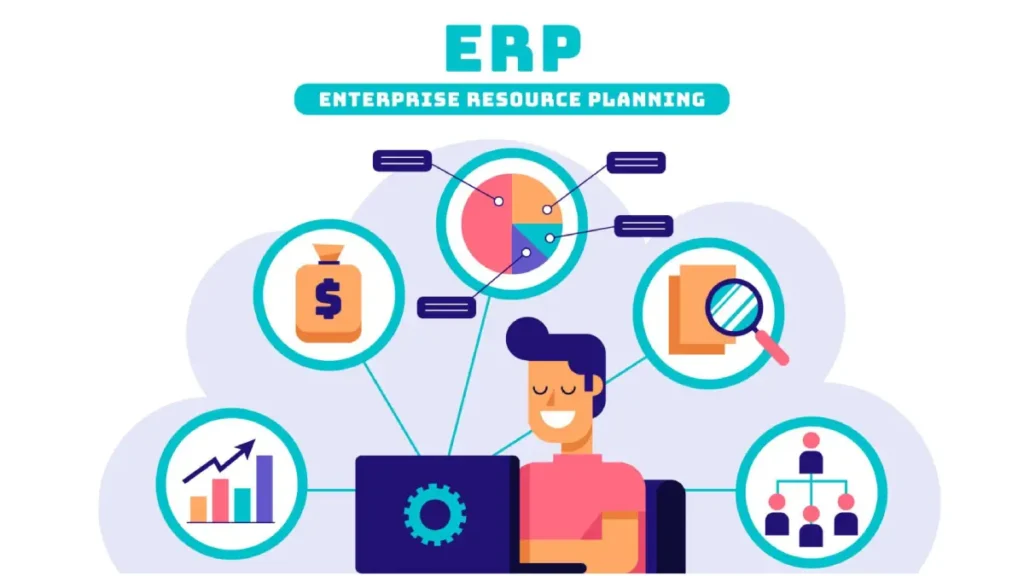
The management of a business is not a simple task. You need to deal with sales, purchases, inventory, accounts, employees, and much more simultaneously. This is where ERP software fits in. ERP stands for Enterprise Resource Planning, and it allows you to manage your entire business in a single location.
One of the best ERP software options available in India is Newton ERP Software. It is straightforward, user-friendly, and specifically created to satisfy small and medium businesses. No matter how long you have been using it or how new you are to the whole thing, this is a step-by-step guide that will assist you in learning how to use Newton ERP like a pro.
Step 1: Login and Dashboard Overview
Once your account is created, you will get a username and password. Open a browser and visit the Newton ERP Software login page, where you will be required to enter your credentials.
Once you have logged in, you will be taken to the dashboard, which is the main screen that provides you overview of your business. Various options such as Sales, Purchase, Inventory, Accounts, Reports, etc., will be displayed.
The left side menu gives you all the ERP system modules, whereas the center gives key highlights such as total sales, pending payments, and stock alerts.
Here is your control room. With its help, you can reach all the corners of your business with a couple of clicks.
Step 2: Setting Up Company Profile
The initial step you need to take before using the software is to configure the company details. Enter your company name, address, GST number, contact information, and upload your logo under the “Company Settings” page.
Upon getting your entire business profile within the system, this will be useful in the creation of professional invoices, reports, and records. In addition, this step guarantees that your information will be structured and available to meet any compliance requirements.
Step 3: Adding Users and Assigning Roles
Newton ERP Software lets you add your team members and assign them different roles. This feature is very helpful if you have employees who manage sales, accounts, or stock.
Go to the “Users” section. Click on “Add User,” enter the name, email ID, phone number, and create a password for them. Now, assign a role, for example:
- Admin: Full access
- Sales Manager: Sales only
- Store Incharge: Inventory only
This ERP system module makes sure that sensitive company information can only be accessed by authorized personnel. It also keeps your workflow safe and efficient.
Step 4: Inventory & Product Setup
One of the most important parts of Enterprise Resource Management Systems is managing your stock or inventory.
To set up your products:
- Go to Inventory or Product Master
- Click on “Add Product.”
- Enter the product’s name, quantity, price, and category.
- Add tax info and stock location (if needed)
If you deal with multiple locations or warehouses, Newton ERP lets you manage multi-location inventory easily. This module helps you know exactly what’s in stock, what’s low, and what’s moving fast in real-time.
Step 5: Managing Sales and Purchases
Now that your products are added, you can start creating sales and purchase records.
To create a sales invoice:
- Go to the Sales section
- Click on “Create Invoice.”
- Select customer, products, quantity, and price
- The system will auto-calculate taxes and the total amount
- Save and print or email the bill
For purchases:
- Go to the Purchase section
- Add vendor details, item, quantity, and payment info
- Save and track pending payments
This part of the ERP system implementation saves you hours of manual paperwork. It makes your billing process fast, clean, and hassle-free.
Step 6: Using the Finance & Accounting Module
Every business must track its income and expenses. Newton ERP comes with a simple but powerful accounting module.
You can:
- Record your sales income
- Enter expenses like rent, salaries, and bills
- Connect your bank account and track entries
- Generate your balance sheet and profit-loss report
Everything is auto-calculated. You don’t need to be an accountant to use it. This ERP software for small businesses makes it easy to manage cash flow and prepare for tax season.
Step 7: Generating Reports
What’s working in your business? What’s not? To find out, you need reports.
Newton ERP Software has an easy report generation tool. Go to the Reports section, select the type (Sales, Stock, Accounts), choose your date range, and click “Generate Report.”
The report is available over the internet in an Excel or a PDF file. Such reports assist you in making enhanced business decisions. They tell about your development, warn you against issues, and enable you to think about the future.
Step 8: Integrating with Other Software
Do you already use other software for CRM, HR, or POS? No problem!
Newton ERP is compatible with other systems that could be easily integrated to provide you with a comprehensive one. You can synchronize the customer information with the CRM, manage employees through the HRMS, or follow retail sales with POS.
It is also simple to integrate. All you have to do is make your way inside the Integration section, select your app, and follow the easy steps. Because of its adaptability, Newton is among the best ERP software for growing companies.
Step 9: Accessing Help or Support
Stuck somewhere? Need help?
Newton ERP has a strong support system. You can:
- Read how-to guides in the Help section
- Watch training videos
- Create a support request from the dashboard.
- Or simply call the Newton support team for live assistance
So, even if you are new to using an ERP system, you’re never alone.
Conclusion + Pro Tips
It is not a challenge to learn how to use Newton ERP Software. It is one of the best ERP software with a clear dashboard, hassle-free navigation, and helpful modules.
It is faster, prevents errors, and makes your business move quicker as soon as you become familiar with it.
Pro Tips for Smooth Use:
- Keep your product, stock, and customer data updated
- Give limited access to team members as per their roles
- Take regular backups
- Use reports weekly to track progress
- Explore new features and integrations as your business grows
Newton ERP is the tool that you require when you are a business owner who wants to make things easier to handle on a daily basis. Not only can large companies use this ERP software for small businesses, but its functionality is organized to ease your life.
Take your first step with Newton ERP now, and you will see how this is a powerful Enterprise Resource Management Solution that can change the way things work!